Automate Bank Statement Data Entry: A Bookkeeper's Complete Workflow Guide
You know that feeling on the 5th of the month. The bank statements have rolled in from eight, ten, maybe fifteen clients. Each one needs to be reconciled. Each transaction needs to land in the right account.
And you're staring down 150-200 transactions per client that have to go somewhere.
Most bookkeepers spend 2-3 hours per client on bank statement processing. That's not strategic work. That's typing. Copying. Checking. Fixing the errors that slip in when your eyes start crossing at transaction #87.
This guide walks through a complete workflow for automating bank statement data entry — from collecting PDFs to final reconciliation. Not theory. An actual step-by-step process you can implement this week.
By the end, you'll have a system that cuts statement processing from hours to minutes per client. The math is simple: if you process 10 clients monthly and save 2 hours each, that's 20 hours back. Every single month.
Ready to see how much time you could save? Try PDF Parser free and test it with a real client statement.
The Real Cost of Manual Bank Statement Entry
Let's talk numbers. Honest ones.
The average business checking account generates 80-150 transactions per month. Active businesses hit 200-300 easily. Each transaction requires reading the date, interpreting the description, entering the amount, and assigning a category.
Time investment per client (manual method):
That's 3-5 hours per client, assuming things go smoothly. They rarely do.
Error rates tell another story. Studies consistently show manual data entry carries a 1-2% error rate. On a statement with 150 transactions, that's 2-3 mistakes hiding somewhere. Each one costs 5-15 minutes to find during reconciliation.
The month-end crunch makes it worse. When you're processing multiple clients in the same week — because everyone's statements land at once — fatigue compounds errors. Your Tuesday accuracy isn't your Friday accuracy.
Here's what this costs in real terms: a bookkeeper billing $50/hour who spends 30 hours monthly on bank statement entry is spending $1,500 in labor on typing. Not analysis. Not advisory work. Typing.
Why Bank Statements Are Particularly Tricky
Not all documents are created equal. Bank statements are uniquely frustrating for data entry.
Format chaos across institutions. Chase formats transactions differently than Bank of America. Wells Fargo layouts don't match local credit unions. Each bank positions dates, descriptions, and amounts in their own way. If you process multiple clients with different banks, you're constantly context-switching.
Transaction descriptions are cryptic. "POS DEBIT 4829 AMZN MKTP US" doesn't scream "office supplies." "ACH CREDIT GUSTO" needs translation. You're not just entering data — you're interpreting it. Every. Single. Line.
Multi-page statements multiply the problem. A 6-page statement means scrolling, page-flipping, and losing your place. Did you already enter that transaction at the bottom of page 3, or was that page 4?
PDF formats fight you. Copy-pasting from bank statement PDFs rarely works cleanly. You get merged cells, broken columns, and dates that paste without their amounts. So you type instead — which is slower and error-prone.
Running balances need checking. After all that entry, you still need to verify the ending balance matches. When it doesn't (and it often doesn't the first time), you're hunting through 150 entries looking for the $47 discrepancy.
Traditional Approaches and Their Limitations
Bookkeepers have developed workarounds over the years. Most help a little. None solve the core problem.
Manual typing with double-verification. Enter everything once. Check against the statement. Enter again to confirm. This catches errors but doubles your time. Not sustainable at scale.
Bank feeds through accounting software. QuickBooks Online, Xero, and FreshBooks offer automatic bank connections. When they work, they're great. But they fail more than vendors admit — connection drops, missing transactions, multi-day sync delays. And they only work if your client's bank supports the connection. Many don't.
Copy-paste with reformatting. Select the transaction table in the PDF, paste into Excel, spend 20 minutes fixing the broken formatting. Better than pure typing, but still manual and still error-prone.
Excel macros and import templates. Some bookkeepers build elaborate spreadsheet systems. These require upfront setup for each bank format and break whenever the bank updates their statement layout. Maintenance overhead adds up.
The common thread: every traditional approach either trades time for accuracy or accuracy for time. None actually eliminate the data entry bottleneck.
The Automated Workflow: Step by Step
Here's the workflow that changes the equation. Five steps, repeatable across any client, any bank.
Step 1: Collect Statements (PDF Format)
Start with PDF statements. Most banks let clients download statements directly from online banking. If your client can't do this themselves, have them grant you read-only portal access.
Pro tip: Create a folder structure by client and month. "ClientName/2025-01/checking.pdf" keeps things organized when you're processing 10+ clients.
PDF is the universal format. It doesn't matter if the bank is Chase or a small credit union in Kansas — they all generate PDFs.
Step 2: Upload to PDF Parser
Go to PDF Parser and upload the statement. Drag and drop works. So does clicking to browse.
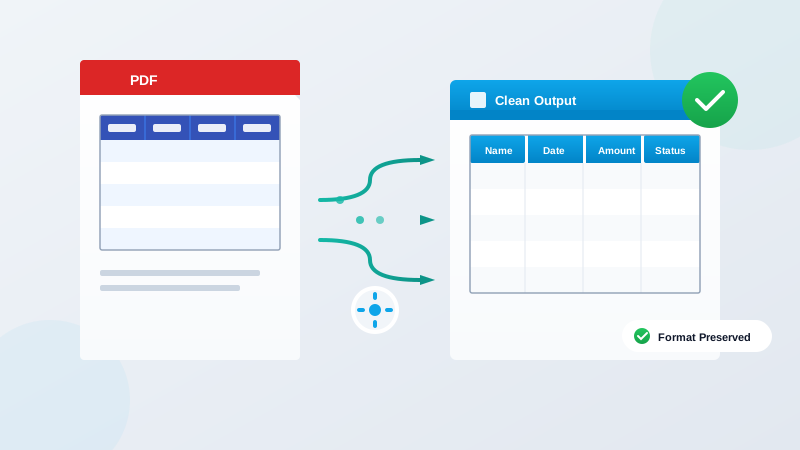
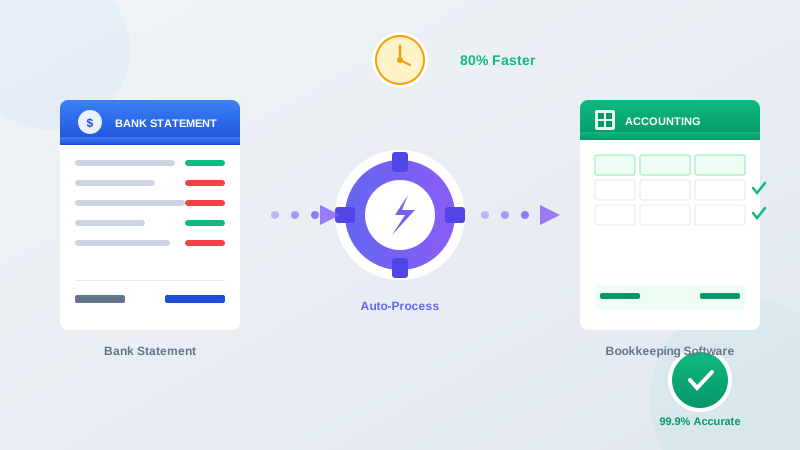
The tool reads the document automatically. It identifies the transaction table, extracts dates, descriptions, and amounts, and structures everything into clean rows and columns.
This takes seconds. Not minutes. Seconds.
PDF Parser handles the weird layouts, the merged cells, the multi-page spanning. You don't configure templates or mark extraction zones. It figures out the format automatically.
Step 3: Map Fields to Your Accounting Software Format
Downloaded data comes in standard columns: Date, Description, Amount (or separate Debit/Credit columns).
Most accounting software imports need specific formats. QuickBooks wants "Date, Description, Amount" with debits as negatives. Xero expects separate columns. Your client's industry-specific software might want something else entirely.
Build a simple mapping template in Excel or Google Sheets. One template per target format. When you download extracted data, paste it into your template. A few formulas handle the reformatting — negating amounts, reformatting dates, combining columns.
Once built, these templates work forever. 30 seconds per statement.
Step 4: Export and Import
Export from PDF Parser as CSV or Excel. Run through your mapping template. Import into the accounting software.
Most imports take 2-3 clicks. QuickBooks: Banking > File Upload > Select file > Map columns > Import. Xero: similar process. Your software has its own version.
The entire process — upload, extract, map, import — takes 3-5 minutes per statement. Compare that to 2-3 hours of typing.
Process your first statement free — see the extraction in action.
Step 5: Quick Reconciliation Check
Automation isn't set-and-forget. You still verify.
Run the reconciliation report in your accounting software. Compare the ending balance to the statement. If they match, you're done.
If they don't match, the difference is usually obvious: a duplicate import, a missed page, or a statement from the wrong date range. Finding issues in clean imported data takes minutes, not hours.
The verification step takes 5-10 minutes. That's it.
Manual vs Semi-Automated vs Fully Automated
| Aspect | Manual Entry | Semi-Automated (Bank Feeds) | Fully Automated (PDF Parser) |
|---|---|---|---|
| Time per statement (150 txns) | 2-3 hours | 30-60 min (when working) | 5-10 minutes |
| Error rate | 1-2% | <1% (but missing txns) | <0.5% |
| Bank compatibility | Universal | Limited (~60% of banks) | Universal |
| Setup time | None | 15-30 min per account | 5 minutes once |
| Reliability | Consistent (slow) | Unpredictable connections | Consistent |
| Cost | Your time | Software subscription | Per-statement credits |
| Works offline | Yes | No | Yes (upload anytime) |
The comparison speaks for itself. Bank feeds are great when they work. They don't always work. PDF extraction works every time because the PDF exists.
Real Workflow Example: Processing 10 Clients' Statements
Let's walk through a realistic month-end scenario.
The situation: You have 10 small business clients. Each has 1-2 bank accounts. Average 120 transactions per statement. It's the 7th of the month and statements are due.
Traditional approach:
Automated workflow:
Morning block (2 hours):
Afternoon block (1.5 hours):
Total: 3.5 hours.
That's a 20+ hour savings. Every month. Forever.
Use those hours for advisory work. Client meetings. Growing your practice. Or just leaving the office at 5pm during month-end for once.
Common Issues and How to Handle Them
Automation isn't magic. Here are the real problems you'll encounter and how to solve them.
Problem: Scanned statements with poor image quality.
Some clients have older statements that were scanned from paper. Low resolution causes extraction errors.
Solution: Ask clients for digital statements when possible. For historical scans, request higher resolution (300 DPI minimum). PDF Parser handles most scanned documents well, but garbage in still means garbage out.
Problem: Statement format changes.
Banks occasionally update their statement layouts. Your mapping template might need adjustment.
Solution: Keep templates simple. Date-Description-Amount rarely changes even when formatting does. Most updates require 5 minutes of template tweaking.
Problem: Split transactions across page breaks.
Long descriptions sometimes wrap across pages, causing the extraction to split one transaction into two rows.
Solution: Quick manual cleanup in your spreadsheet. Concatenate the description, delete the extra row. Takes 30 seconds when it happens.
Problem: Foreign currency accounts.
Multi-currency statements have additional columns and conversion notes.
Solution: Extract first, then filter for the columns you need. Most imports only care about native currency amounts anyway.
Problem: Handwritten annotations on statements.
Some clients write notes on their printed statements before scanning.
Solution: Extraction might pick up the handwriting as noise. Review the output and delete any garbage rows. Usually 2-3 per statement maximum.
None of these issues take more than a few minutes to resolve. Compare that to the hours you'd spend on manual entry regardless.
Calculate Your Time Savings
Here's the math for your specific situation.
Current state:
With automation:
Monthly savings calculation:
(Clients x Statements x 2 hours) - (Clients x Statements x 0.17 hours) = Hours saved
For 10 clients with 1.5 statements each:
(10 x 1.5 x 2) - (10 x 1.5 x 0.17) = 30 - 2.5 = 27.5 hours saved per month
At $50/hour billing rate, that's $1,375 in recovered capacity. Every month.
Start With One Statement
You don't need to overhaul your entire workflow today. Start small.
Pick one client's statement from this month. Upload it to PDF Parser. See how clean the extraction is. Run through the import process once.
When you see a 2-hour task finish in 10 minutes, you'll understand why this matters.
Process your first statement free — see how much time you save.
The bank statements aren't going away. The question is whether you'll keep typing them manually — or let automation handle the tedious part while you focus on the work that actually requires your expertise.