How to Extract Tables from PDF Documents Without Losing Formatting
You found the perfect data table in a PDF report. Columns are aligned, numbers are formatted correctly, and everything looks exactly how you need it. Then you try to copy it into Excel.
Suddenly, five neat columns become one jumbled mess of text. Numbers that were aligned perfectly now scatter across random cells. What should have taken 30 seconds turns into 20 minutes of reformatting.
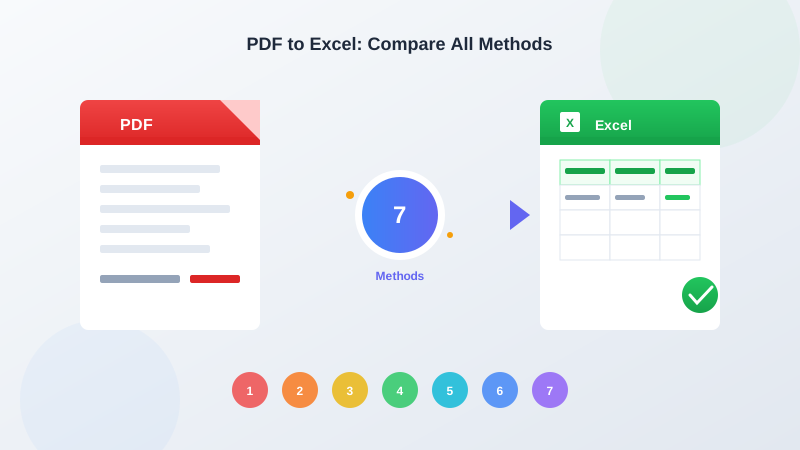
This guide covers three proven methods to extract tables from PDF documents: manual copy-paste, Adobe Acrobat export, and AI-powered extraction. Each has trade-offs. By the end, you'll know which approach fits your specific situation.
Want to skip ahead? Try PDF Parser free and extract your first table in under 60 seconds.
Why PDF Tables Break When You Copy Them
Understanding the problem helps you pick the right solution.
PDFs were designed for printing, not editing. When Adobe created the format in 1993, the goal was pixel-perfect document reproduction. Tables in PDFs aren't actually tables — they're just text positioned at specific coordinates on a page.
When you copy a PDF table, your computer grabs raw text without any structural information. It doesn't know that "Invoice Number" and "12345" belong in the same row. It doesn't recognize column boundaries. The result is chaos.
Three factors determine how badly your table will break:
Text-based vs. scanned PDFs. Text-based PDFs (created from Word, Excel, or design software) contain actual characters. Scanned PDFs are just images — copying text is impossible without OCR.
Table complexity. Simple two-column tables extract better than multi-level headers with merged cells. Nested tables almost never copy correctly.
PDF creator settings. Some PDF generators add invisible formatting hints. Others strip everything. You won't know until you try.
Tables with financial data face extra problems. Numbers like "$1,234.56" often split into separate cells. Negative values in parentheses confuse extraction tools. Currency symbols end up in wrong columns.
PDF Parser handles all three problems automatically — including scanned documents and complex table structures.
Method 1: Copy and Paste (Manual Approach)
The simplest method is often the first one people try.
How to do it:
Pros:
Cons:
Best for: Single-column lists or very simple two-column tables where manual cleanup takes under 2 minutes.
Real-world result: A 10-row, 5-column table typically requires 5-8 minutes of cleanup after pasting. At that rate, you're better off retyping the data.
Method 2: Adobe Acrobat Export
Adobe Acrobat Pro (not the free Reader) includes a built-in export feature.
How to do it:
Pros:
Cons:
Best for: Organizations already paying for Adobe Creative Cloud who need occasional table extraction from standard documents.
Real-world result: A 50-row financial report table exports in about 90 seconds. Cleanup time varies from 2 minutes (simple structure) to 15+ minutes (complex formatting).
Method 3: AI-Powered Extraction with PDF Parser
AI extraction tools analyze document layout visually, understanding tables the way humans do.
How to do it:
Pros:
Cons:
Best for: Anyone extracting tables regularly, especially from varied document sources or scanned PDFs.
Real-world result: A 50-row financial report table extracts in 20-30 seconds. Accuracy typically reaches 95-98% on standard business documents, meaning little to no cleanup required.
Quick Comparison Table
| Factor | Copy-Paste | Adobe Acrobat | PDF Parser |
|---|---|---|---|
| Cost | Free | $22.99/month | Free tier available |
| Setup time | None | Software install | None (web-based) |
| Simple tables | Poor | Good | Excellent |
| Complex tables | Fails | Fair | Good |
| Scanned PDFs | Fails | Fair (with OCR) | Good |
| Formatting preserved | Rarely | Sometimes | Usually |
| Time per table | 5-10 min cleanup | 2-5 min cleanup | Under 1 min |
Step-by-Step: Extract Tables with PDF Parser
Here's exactly how to extract your next table:
Step 1: Prepare your document
Locate the PDF containing your table. PDF Parser accepts files up to 50MB. For best results with scanned documents, ensure the scan resolution is at least 150 DPI.
Step 2: Upload to PDF Parser
Visit PDF Parser. Drag your file onto the upload area, or click to browse. The upload typically completes in 2-5 seconds depending on file size.
Step 3: Wait for AI analysis
PDF Parser's AI examines your document layout, identifies table boundaries, and recognizes cell contents. This takes 15-30 seconds for most single-page tables. Multi-page documents take proportionally longer.
Step 4: Review the extraction
Your extracted data appears on screen in a clean table format. Check that column headers align correctly and spot-check a few data values against the original PDF.
Step 5: Export your data
Click the download button and choose your format:
The entire process typically takes under 60 seconds from upload to download.
Which Method Should You Use?
Choose copy-paste if: You have a single simple table with 2-3 columns and fewer than 10 rows. The time to clean up formatting is less than 2 minutes.
Choose Adobe Acrobat if: You already pay for Creative Cloud, work primarily with text-based PDFs, and extract tables occasionally (less than 5 per week).
Choose PDF Parser if: You extract tables regularly, work with varied document sources, need to handle scanned PDFs, or value your time over manual cleanup.
Most professionals switch to AI extraction once they calculate the true cost of manual methods. At an average of 7 minutes saved per table, extracting just 10 tables per week saves over 6 hours monthly.
Start Extracting Tables the Easy Way
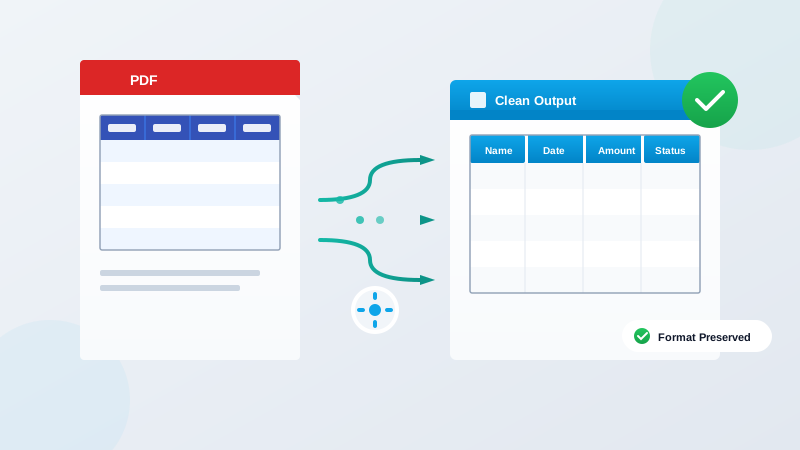
PDF tables don't have to mean broken formatting and wasted hours. The right tool turns a frustrating process into a 60-second task.
Extract your first table free — no account required. Upload any PDF, see the results instantly, and download your perfectly formatted spreadsheet.